QR Code for Google Form and Event Registration: How to Create One, and a Better Way for Leads
How to create a QR code for a Google Form or event registration, where to place it, and when to use a CRM-connected QR form that turns every scan into a sales lead.
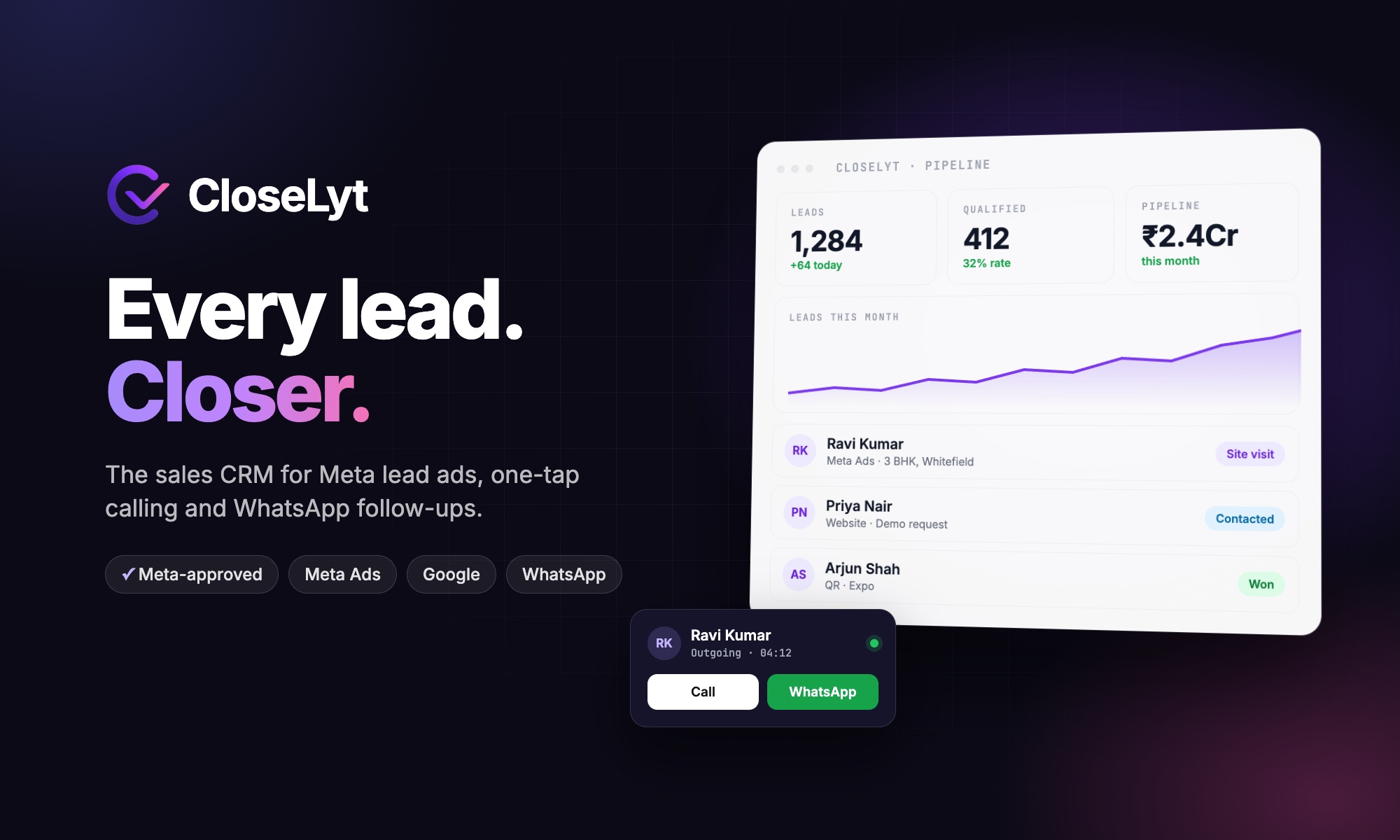
A QR code for a form lets people register or enquire by scanning with their phone camera, with no typing a link and no paper. It is the fastest way to collect details at events, receptions, stores and expos. This guide shows how to create a QR code for a Google Form or an event registration form, where to place it, and when a CRM-connected QR form, like the ones in CloseLyt, is the better choice.
How to create a QR code for a Google Form
- Open your form in Google Forms and click Send.
- Choose the link option, tick "Shorten URL" and copy the link.
- Create the QR code: open the form link in Google Chrome and use the browser's share or "Create QR code" option, or paste the link into any trusted QR code generator.
- Download the QR image and test it with two or three different phones before printing.
- Print it large enough (at least 3–4 cm wide for a desk, much larger for a banner) with a short call to action such as "Scan to register".
Creating a QR code for event registration
- Keep the form short: name, phone number, email and one or two questions you really need.
- Make it mobile-first: large fields, few screens, and a clear confirmation message.
- Use one QR code per location or event if you want to know where registrations came from.
- Place the code where people pause: entrance desks, stall standees, tables, brochures and screens.
- Have a fallback: a short link printed under the code for phones that struggle to scan.
Where QR forms work best
| Place | Use |
|---|---|
| Expo and trade show stalls | Capture visitor enquiries for follow-up |
| Reception desks | Visitor registration and walk-in enquiries |
| Admission and education fairs | Course interest and counselling requests |
| Health camps and clinics | Patient interest and appointment requests |
| Showrooms and site offices | Walk-in leads and test-drive or site-visit bookings |
| Print ads, flyers and brochures | Turning offline attention into enquiries |
Google Form QR codes vs CRM-connected QR forms
A Google Form QR code is perfect for registrations and surveys. For sales leads, the responses still end in a spreadsheet that someone must check, copy and share out. A CRM-connected QR form goes further:
- every scan-and-submit creates a lead in the CRM immediately,
- the phone number is validated and duplicates are caught,
- the lead is assigned round robin to the next salesperson,
- the salesperson calls or sends a WhatsApp template within minutes,
- and you can see leads and sales by QR code and event.
That is exactly how we built forms and QR codes into CloseLyt. Read the expo lead capture case study and our Google Form alternative guide.
Frequently asked questions
Does a QR code for a Google Form expire?
No. A QR code simply contains the form link. It keeps working as long as the form exists and accepts responses.
Can I change the form after printing the QR code?
Yes, you can edit questions on the same form. If you create a new form, you need a new QR code, so print codes only for forms you plan to keep.
How do I know which QR code brought a registration?
Use a separate form or tracked link per location. CRM-connected forms record the source of every lead automatically.
Need event registration, QR lead capture or a CRM built for your business? Talk to Next Code Company.
Related articles
Have a story worth engineering?
We turn strategy into shipped software. Book a free consultation and we'll map the build, the timeline and the cost.